28 Aug 2026
Post by Gabriel
Introduction
Turning your iMac into a monitor is an excellent way to enhance your productivity by offering a dual-screen setup. This feature allows certain iMac models to serve as external displays for other Macs, providing a broader workspace for multitasking. This guide aims to help you determine whether your iMac is compatible and walk you through the precise steps to achieve this setup.
Understanding Compatibility
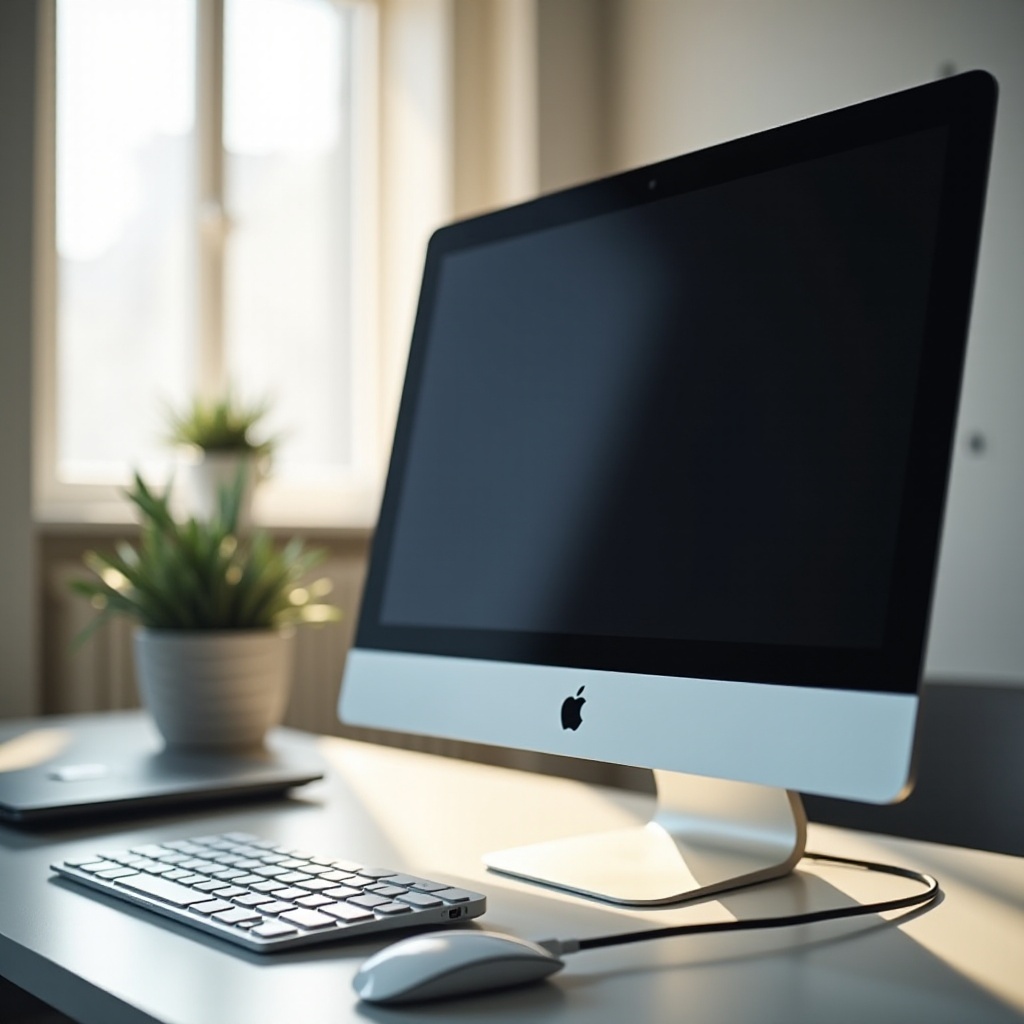
To use your iMac as a monitor, you need to confirm if it supports Target Display Mode (TDM). TDM is a feature that lets your iMac function as an external display for another Mac. Start by identifying your iMac model since TDM is available only on specific models produced before 2020.
- Finding Your iMac Model:
- Click on the Apple logo at the top-left corner of your screen.
- Select ‘About This Mac’ to view model information.
- Check Apple’s official documentation to confirm compatibility with TDM.
Confirming compatibility is crucial before gathering the necessary equipment, which we’ll discuss next.
Equipment Needed and Initial Setup
Once you’ve confirmed that your iMac supports TDM, it’s essential to gather the right equipment. Using proper cables and adapters will avoid connectivity issues and ensure a smooth setup.
- Cables and Adapters:
- Obtain a Thunderbolt or Mini DisplayPort cable, depending on your iMac model.
- Secure appropriate adapters if your second Mac uses USB-C.
After assembling the necessary equipment, organize your workspace. A tidy and ergonomic arrangement can significantly improve your work efficiency.

Step-by-Step Guide to Enabling Target Display Mode
With your gear ready, follow these steps to enable Target Display Mode and use your iMac as a monitor:
- Make sure both your iMac and the secondary Mac are powered on.
- Use the appropriate cable to connect the two devices.
- Press Command + F2 on the iMac keyboard to enter Target Display Mode.
- Your iMac should now display the screen from the secondary Mac automatically.
Should you encounter any issues, verify that all cables are securely connected. If needed, adjust resolution settings through the Display preferences on your Mac for optimal viewing.
Next, we’ll explore solutions for iMac models that do not support TDM.
Alternatives and Solutions for Incompatible Models
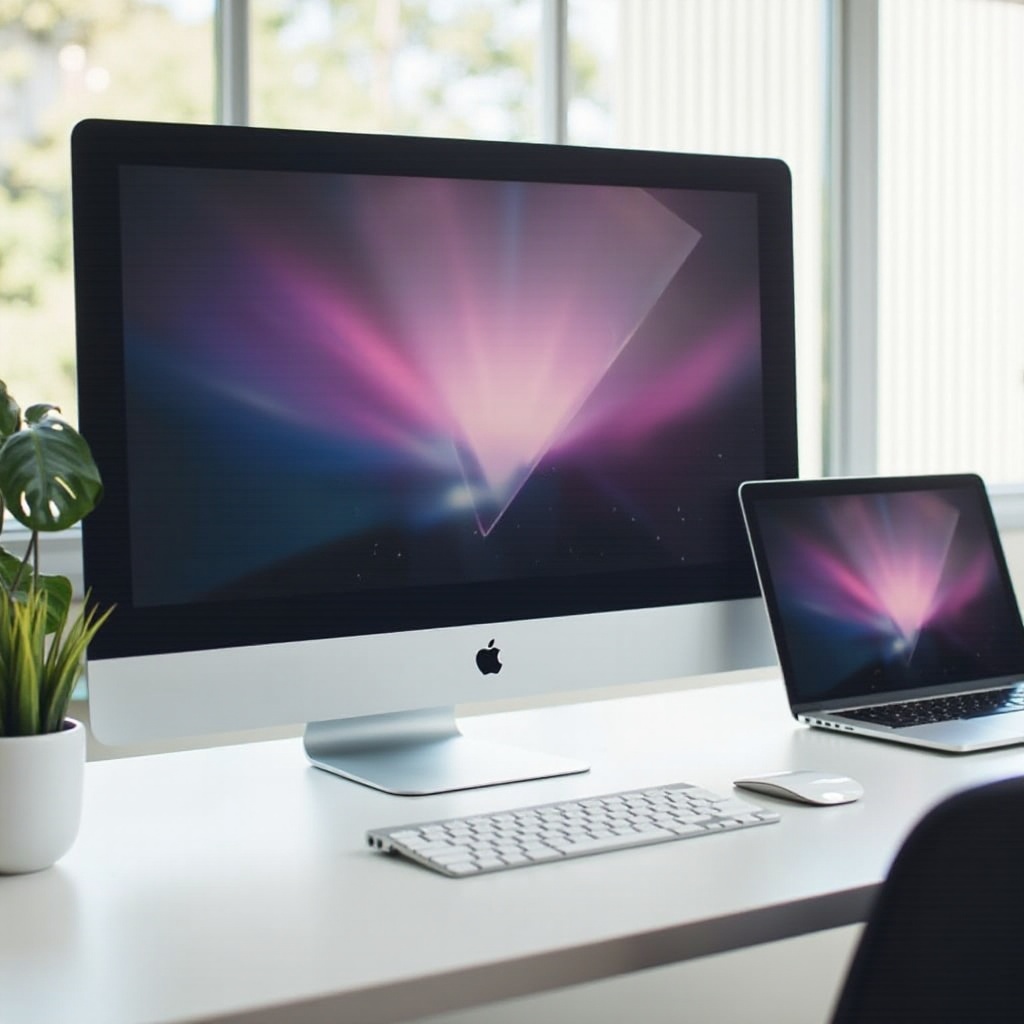
If your iMac does not support TDM, don’t worry—there are alternative solutions to achieve similar results:
- Third-Party Applications:
-
Consider using software such as Luna Display or Duet Display to extend your iMac as a monitor.
-
Limitations to Consider:
- While these apps can be effective, they might introduce latency or decreased performance compared to TDM.
Evaluating these alternatives can help you decide the best course of action for using your iMac in a dual-monitor setup.
Maximizing Productivity with Dual Monitors
A dual-monitor setup can fundamentally change your workflow for the better. Here are tips to maximize your iMac monitor setup’s potential:
- Benefits:
- Enjoy increased screen real estate which facilitates multitasking.
-
Handle multiple applications and documents more efficiently.
-
Essential Apps and Tools:
- Use Mission Control for easy app navigation.
-
Explore productivity apps to streamline your workflow.
-
Tips for Optimal Display Settings:
- Proper monitor positioning can help reduce eye strain.
- Adjust display settings to ensure clear and comfortable viewing.
These strategies provide the perfect way to make the most out of your dual-monitor setup, increasing both productivity and enjoyment in your tasks.
Conclusion
Transforming your iMac into a monitor is a practical strategy for expanding your workspace and boosting productivity. By confirming compatibility and following the outlined steps, you can quickly set up your iMac as a second display. For those with incompatible models, consider alternative solutions and apply our productivity tips to optimize your workspace fully.
Frequently Asked Questions
Can I use any iMac as a monitor?
Only certain iMac models support Target Display Mode, mainly those made before 2020.
What if my iMac doesn’t support Target Display Mode?
Consider using third-party applications like Luna Display or Duet Display as alternatives.
Are there any risks involved in using an iMac as a second monitor?
As long as compatible hardware is used and steps are followed correctly, the risks are minimal.