25 Sep 2026
Post by Gabriel
Introduction
Owning an iPhone often means managing an ever-growing collection of apps, which can quickly lead to a cluttered home screen. Efficiently grouping apps can significantly reduce this chaos, making your digital interactions seamless and stress-free. By mastering app organization, you enhance your user experience, resulting in easier navigation and improved productivity. This comprehensive guide will equip you with the skills necessary to organize your apps effectively, especially utilizing the advanced features of iOS 2024. Let’s explore how you can manage your digital space with more control and less hassle.
Why Organizing Apps is Essential
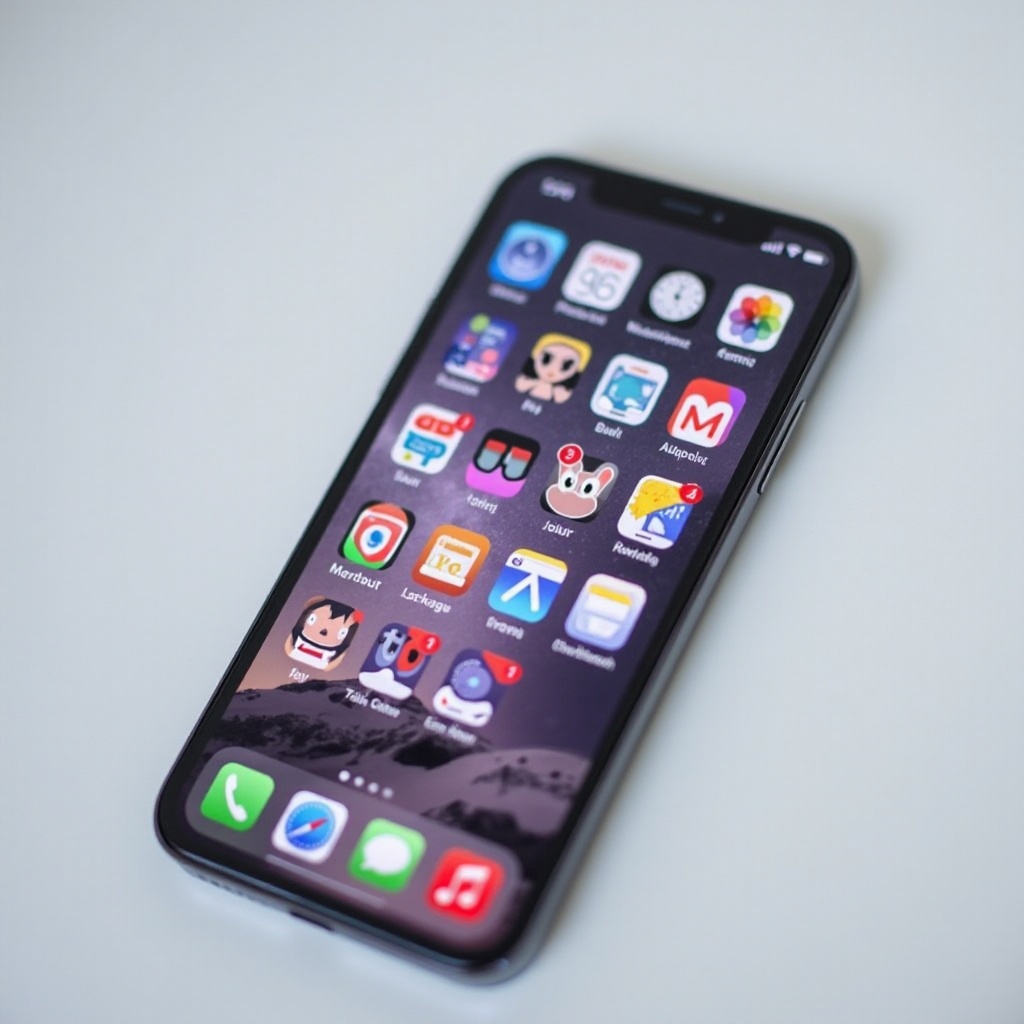
A disorganized home screen can be a major productivity drain, causing unnecessary stress as you sift through countless apps to find what you need. Grouping apps strategically allows you to locate and launch them swiftly, saving both time and battery life by minimizing screen usage. Moreover, a well-organized iPhone lets you personalize its aesthetic, enhancing your overall interaction with the device. By knowing how to manage your apps, you can enjoy a more efficient and pleasant user experience.
Preparing Your iPhone for App Grouping
Before delving into app grouping, it’s essential to prepare your iPhone to ensure a smooth organizational process. Start by updating all your apps to their latest versions to maintain compatibility and performance. Back up your device using iCloud or iTunes to secure your data. Finally, remove unused apps to streamline the grouping process and maintain an orderly home screen. With these preliminaries done, your iPhone is all set for efficient app grouping.
Step-by-Step Guide to Grouping Apps on iPhone
Grouping apps on your iPhone is straightforward once you understand the process:
Creating a Folder
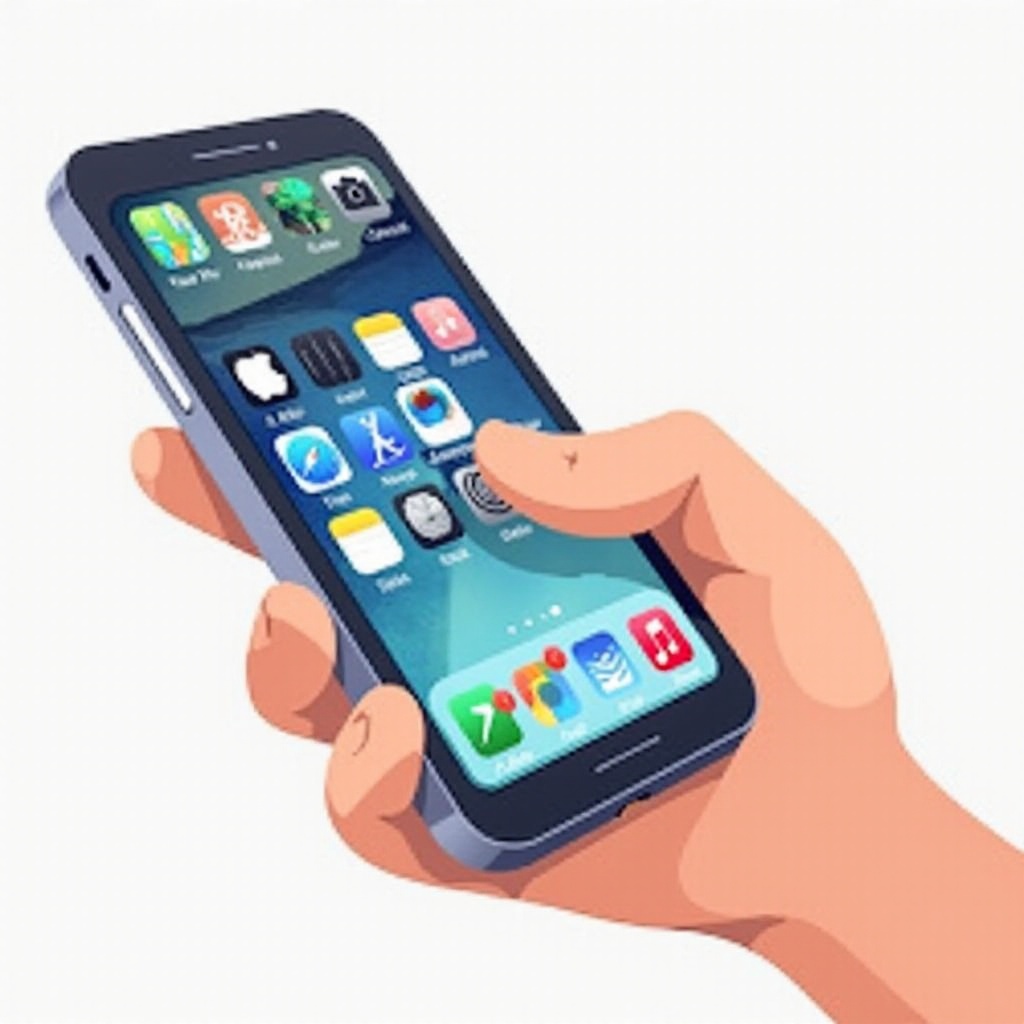
- Press and hold an app icon until it starts jiggling.
- Drag the app over another app to create a folder instantly.
- Release the app when the new folder pops up.
Adding Apps to a Folder
- While an app is jiggling, drag it into your chosen folder.
- Repeat the action to add more apps as needed.
Customizing Your Folders
Personalizing your folders enhances both function and appearance:
Renaming Folders
- Open the folder and click on the name field.
- Erase the current name and enter your desired name.
Color Coordinating and Icon Selection
Enhance folder identification and aesthetic with color and icons:
– Access color tags from ‘Settings > Appearance’.
– Choose icons to represent your folders from the same settings.
– These visual cues assist in quickly identifying apps.
By customizing your folders, not only do they look appealing, but they also significantly improve your app management efficiency.
Best Practices for Efficient App Organization
Maximize app organization with these strategies:
– Sort apps by categories like productivity, entertainment, or social media.
– Limit folders per screen to maintain clarity.
– Position frequently used folders on your first home screen for swift access.
– Regularly reassess your app setup to accommodate changes in your app usage.
Following these best practices ensures your app organization is both practical and intuitive.
Utilizing Advanced Features in iOS 2024 for App Organization
iOS 2024 brings innovative features that elevate app organization:
– Smart Folders: Automatically sort apps based on your habits.
– Widget-Enabled Folders: Allow quick app access without opening folders.
– Advanced App Library Filters: Organize apps with filters like “Recently Added” or “Suggestions”.
Leveraging these features enhances your iOS experience, making it easier to manage and access your apps.
Troubleshooting Common App Grouping Issues
Encounter common issues and solutions:
– Apps not moving into folders: Ensure icons are jiggling before the move.
– Limited folder space: Utilize multiple folder pages by swiping.
– Finding new apps: Use the “Recently Added” section in the App Library for quick access.
Understanding and resolving these issues will help maintain effective app organization effortlessly.
Conclusion
Organizing apps into well-structured folders transforms your iPhone into a streamlined and efficient device. Harnessing the power of the latest iOS 2024 enhancements ensures you maintain a tidy and productive digital environment. Routine review and maintenance keep your home screen clutter-free, optimizing your use of Apple’s smart technology for an improved experience.
Frequently Asked Questions
How many apps can I put in a single folder?
You can store up to 135 apps in a single folder, spread over multiple pages.
Can I organize apps in my App Library?
The App Library organizes apps automatically, but you cannot manually rearrange this view.
How can I quickly find a specific app once they are in folders?
Use the search function by swiping down on the home screen, entering the app’s name for instant location.