26 Dec 2025
Post by Gabriel
Introduction
Resetting the BIOS on your HP laptop can be essential when troubleshooting various hardware and software issues. The BIOS, or Basic Input/Output System, plays a crucial role in initializing and managing your laptop’s components during startup. Whether you’re dealing with boot problems, hardware incompatibilities, or simply need to reset a forgotten BIOS password, understanding the reset process is vital. This guide will help you navigate these situations with ease.
Understanding BIOS and Its Role in HP Laptops
The BIOS acts as a crucial intermediary between a laptop’s hardware and its operating system. On power-up, it manages critical processes, ensuring all hardware is appropriately initialized for the system to function correctly.
What is BIOS and Its Functions?
The BIOS, or Basic Input/Output System, is firmware that resides on a chip on your laptop’s motherboard. Its chief tasks include:
1. Initializing hardware components during the boot-up process.
2. Providing an interface for configuration and system settings.
3. Conducting the Power-On Self-Test (POST) to ensure system components are functioning correctly.
4. Mediating communication between the operating system and the hardware components.
Differences Between UEFI and Legacy BIOS
Understanding the shift from Legacy BIOS to UEFI is important as newer HP laptops often utilize UEFI for increased functionality. UEFI offers:
– A more intuitive graphical user interface for users.
– Support for larger storage drives, unlike its predecessor.
– Enhanced security features such as Secure Boot, which only allows signed OS configurations to prevent unauthorized interventions.
This knowledge is crucial as it influences how you approach BIOS management on different HP laptop models.
Reasons to Reset BIOS on Your HP Laptop
Whether rectifying performance issues or gaining access after being locked out, there are certain scenarios where a BIOS reset is necessary.
Solving Boot and Hardware Issues
A BIOS reset is sometimes the key to resolving hardware-related errors and unresponsive systems. Key issues it can solve include:
1. Non-responsive booting by restoring default system configurations.
2. Fixing hardware errors by resetting component-related settings.
This approach often restores order and functionality, minimizing downtime.
Resetting Forgotten BIOS Password
A forgotten BIOS password can lock you out of critical function settings, leading to potential system performance issues. Resetting your BIOS is one of the simpler solutions to regain access without extensive technical assistance.
Step-by-Step Guide to Reset BIOS on HP Laptops
Depending on your comfort level and the specific issue, there are several ways to reset your BIOS.
Method 1: Reset via BIOS Setup Utility
- Restart your HP laptop.
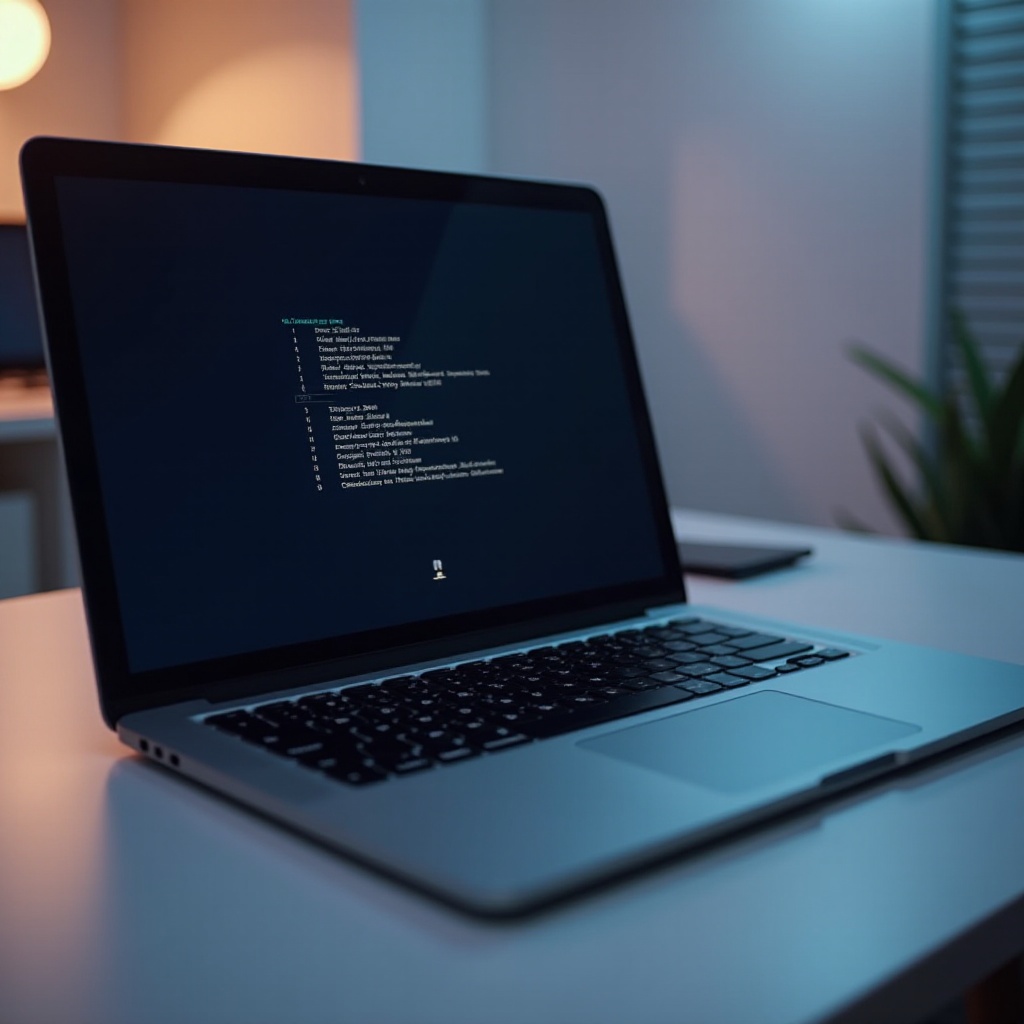
- As the laptop restarts, press the F10 key repeatedly to access the BIOS Setup Utility.
- Navigate to ‘Restore Defaults’ using the arrow keys.
- Choose ‘Yes’ to confirm and then save and exit.
Utilizing this method is straightforward and often resolves configuration issues by restoring default settings.
Method 2: Reset by Removing CMOS Battery
- Ensure your laptop is turned off and disconnected from any power source.
- Remove the back panel where the CMOS battery resides.
- Carefully disconnect the CMOS battery for about a minute before reconnecting it.
- Reassemble your laptop and power it back on.
This physical method clears the BIOS settings, including any set passwords, restoring the default configuration.
Method 3: Reset Using HP Support Tools
- Access HP Support Assistant on your laptop.
- Go to ‘Diagnostics’ and select ‘UEFI Firmware Management.
- Choose to ‘Restore Factory Settings.
HP’s dedicated tools offer a streamlined, guided method for executing a BIOS reset while ensuring the safety of the system.
Post-Reset Actions and Considerations
Once you have reset the BIOS, certain steps should be undertaken to ensure continued system performance and stability.
Restoring Default Settings and Preferences
Following a BIOS reset:
1. Re-enter the BIOS Setup to customize and apply preferred settings.
2. Make sure all configurations, such as boot orders and system time, are correct and complete.
3. Secure your laptop by reinforcing BIOS security settings like Secure Boot if applicable.
These adjustments ensure your system returns to optimal working conditions post-reset.
Making Sure System Time/Date is Correct
Resetting the BIOS affects the real-time clock (RTC), often disrupting the system’s time and date. Follow these steps:
1. Restart your laptop and enter BIOS Setup (F10 key).
2. Correct the ‘System Time’ and ‘System Date’ as necessary.
A correct system time is vital not only for your convenience but also for system functionality, including file timestamps and scheduled tasks.
Conclusion
The process of resetting the BIOS on an HP laptop, while sometimes daunting, is accessible if you follow detailed guidance. It’s a crucial approach to resolving common issues like hardware malfunctions or forgotten passwords, ensuring that your laptop runs smoothly. Whether using the BIOS Setup Utility, interacting directly with the hardware, or using built-in HP tools, you’ll find a method that suits your need. Completing the necessary post-reset actions helps maintain the system’s performance and reliability.
Frequently Asked Questions
What Should I Do if My HP Laptop Won’t Boot After Resetting BIOS?
Ensure the boot order is correctly restored in the BIOS Setup. If issues persist, perform a system diagnostics test using HP Support Assistant.
How Can I Update BIOS on My HP Laptop?
To update BIOS, download the latest version from HP’s official support website specific to your model, and follow installation instructions.
Are There Risks Involved in Resetting BIOS?
While resetting BIOS is generally safe, incorrectly updating or modifying settings might cause issues. Always follow guides like this and take precautions.